
OneDrive, SharePoint or Teams: Where Should Your Business Save Files?
Microsoft 365 gives businesses several ways to create, store, share, and collaborate on documents. That flexibility is useful, until nobody knows where a file is supposed to live.
One employee saves a document in OneDrive. Another sends a copy through email. Someone uploads a newer version into Teams. A third person downloads it to their desktop and makes additional changes. Before long, the team is asking a familiar question:
“Which file is the final version?”
The problem is not necessarily Microsoft 365 itself. Often, the business simply has not established clear rules for where different types of files belong. Understanding the roles of OneDrive, SharePoint, and Teams can help create a simpler system.
Why File Location Matters
Where a document is stored affects more than convenience. It can determine who owns the file, who can access it, how employees collaborate, and what happens when someone leaves the company.
A consistent file structure can make it easier to:
- Reduce duplicate copies
- Control employee access
- Share files without repeatedly emailing attachments
- Find current documents
- Maintain continuity when employees change roles or leave
- Keep team-owned information under company management
The goal is not to create a complicated filing system. It is to give employees a clear answer to a basic question:
Where should this file go?
OneDrive: Best for Individual Work and Drafts
OneDrive is closely tied to an individual Microsoft 365 user. That makes it useful for files an employee is actively working on, personal work documents, and drafts that are not yet ready for broader team ownership. For example, an employee might use OneDrive while preparing a proposal, drafting a report, or working on notes that do not yet need to be shared with an entire department.
OneDrive can also be used to share files with other people when appropriate. However, it should not automatically become the permanent home for every document that belongs to a department or team.
If an important team document lives only within one employee’s OneDrive, ownership and continuity can become more complicated when that employee changes roles or leaves the organization.
A simple rule
OneDrive is generally best for individual work and drafts. Once a document becomes something a department or team needs to maintain together, consider moving it into a company-managed shared location.
SharePoint: Best for Shared Business Documents
SharePoint is designed for shared organizational content. It can provide a central location for documents that belong to a department, team, project, or business function rather than one individual employee. Examples might include:
- Company policies
- Department procedures
- Templates
- Project documents
- Shared reports
- Marketing materials
- Operations documents
- Other files that multiple employees need to access over time
Because SharePoint sites are managed at the organizational level, they can provide clearer ownership for shared business information. This makes SharePoint a better fit for documents that should remain available even when individual employees join, leave, or change responsibilities.
A simple rule
If the business or team owns the document, SharePoint is often the better long-term home.
Teams: The Collaboration Interface
Microsoft Teams can sometimes make file storage confusing because employees often think of Teams as another separate place where documents are stored. In practice, Teams acts as a collaboration interface that works with other Microsoft 365 services. When employees work with files inside a Teams channel, those files generally live in the SharePoint site connected to that team.
This means employees may interact with the document through Teams while the underlying file is actually stored in SharePoint. That can be useful because people can discuss a project, hold meetings, and collaborate on documents without constantly switching between applications.
A simple rule
Teams is where people collaborate. SharePoint is generally where channel files are stored.
What About Files Shared in Teams Chats?
Files shared through a Teams chat work differently from files stored in a Teams channel. A file uploaded into a chat generally comes from the uploader’s OneDrive and is shared with the other people in that conversation. That distinction matters.
If a file is becoming an important team or department document, leaving the primary copy tied to an individual employee’s OneDrive may not be the best long-term arrangement. The team may eventually want to move the document into the appropriate shared SharePoint location.
Stop Sending New Copies of the Same Document
Email attachments are one of the easiest ways to create version confusion.
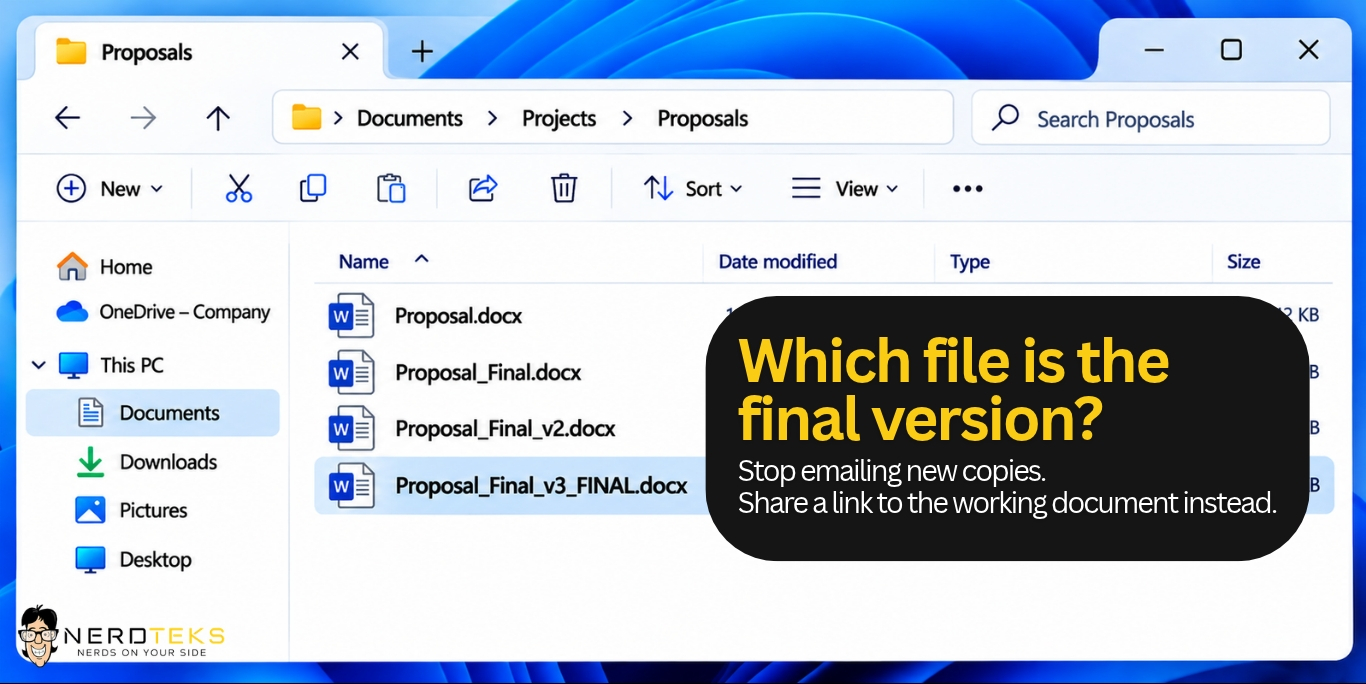
Instead of circulating another copy every time someone makes a change, employees can often share a link to the working document. That allows people with appropriate access to work from the same file instead of creating additional versions scattered across inboxes and desktops.
The exact sharing method should follow your organization’s Microsoft 365 configuration and company policies.
Share Files Without Opening Access Too Widely
Making collaboration easy does not mean everyone should receive access to everything. Before sharing a document, consider who actually needs it and what they need to do with it. Someone may only need permission to view a file, while another employee needs editing access.
External sharing deserves additional attention because business documents may contain internal, confidential, or customer information. Employees should avoid broadening permissions simply because it seems like the fastest way to make a link work. Instead, follow the organization’s approved process for internal and external sharing.
Create Simple Rules Employees Can Follow
Technology alone will not solve file-management problems. Employees need a simple and consistent process. Your organization might establish rules such as:


Make sure important business documents are stored in company-managed locations rather than remaining only inside an individual employee’s account. The exact rules will vary by organization, but consistency is more important than creating a complicated system.
Naming Conventions Can Help Too
A good storage location solves part of the problem. Clear file names make documents easier to find once they are there. Teams may benefit from agreeing on simple naming conventions for recurring documents, projects, customers, or reporting periods.
The goal is not to create extremely long or rigid file names. It is simply to help employees understand what a document contains without opening six nearly identical files.
Think About Ownership, Not Just Storage
One useful question when deciding where a document belongs is:
Who should own this information six months from now?
If the answer is one employee, OneDrive may make sense. If the answer is a department, project team, or the company itself, the document probably belongs in a shared organizational location.
Thinking about ownership can prevent important files from becoming tied unnecessarily to individual accounts.
Make Microsoft 365 Easier for Your Team
OneDrive, SharePoint, and Teams are not competing products that require you to choose only one. They serve different purposes and work together. A simple way to think about them is:

OneDrive: individual work and drafts
SharePoint: shared business and department documents
Teams: collaboration around those files and conversations



When employees understand those roles, Microsoft 365 can become much easier to use. The result is less time searching for documents, fewer duplicate copies, clearer permissions, and better continuity when people join or leave the organization.
Need Help Organizing Microsoft 365?
Nerd Teks helps businesses manage Microsoft 365, user access, SharePoint, OneDrive, Teams, security settings, and everyday technology needs. If your team is struggling with scattered files, confusing permissions, or inconsistent collaboration practices, we can help review your environment and determine practical next steps.
Need help making Microsoft 365 easier for your team to use?
Contact Nerd Teks:
https://nerdteks.com/contact/
Latest Insights








Latest Posts