
Common Password Mistakes Businesses Make
How to reduce password risk and make safer password habits easier for your team
Another account. Another password. Another reset.
For busy teams, password management can quickly become frustrating. Employees may reuse familiar passwords, make small changes to old ones, save credentials in insecure places, or share logins just to keep work moving. Those shortcuts can create unnecessary risk for business email, cloud applications, customer information, and other systems your company depends on.
The answer is not asking employees to memorize increasingly complicated passwords. It is creating a safer, easier process for managing them.
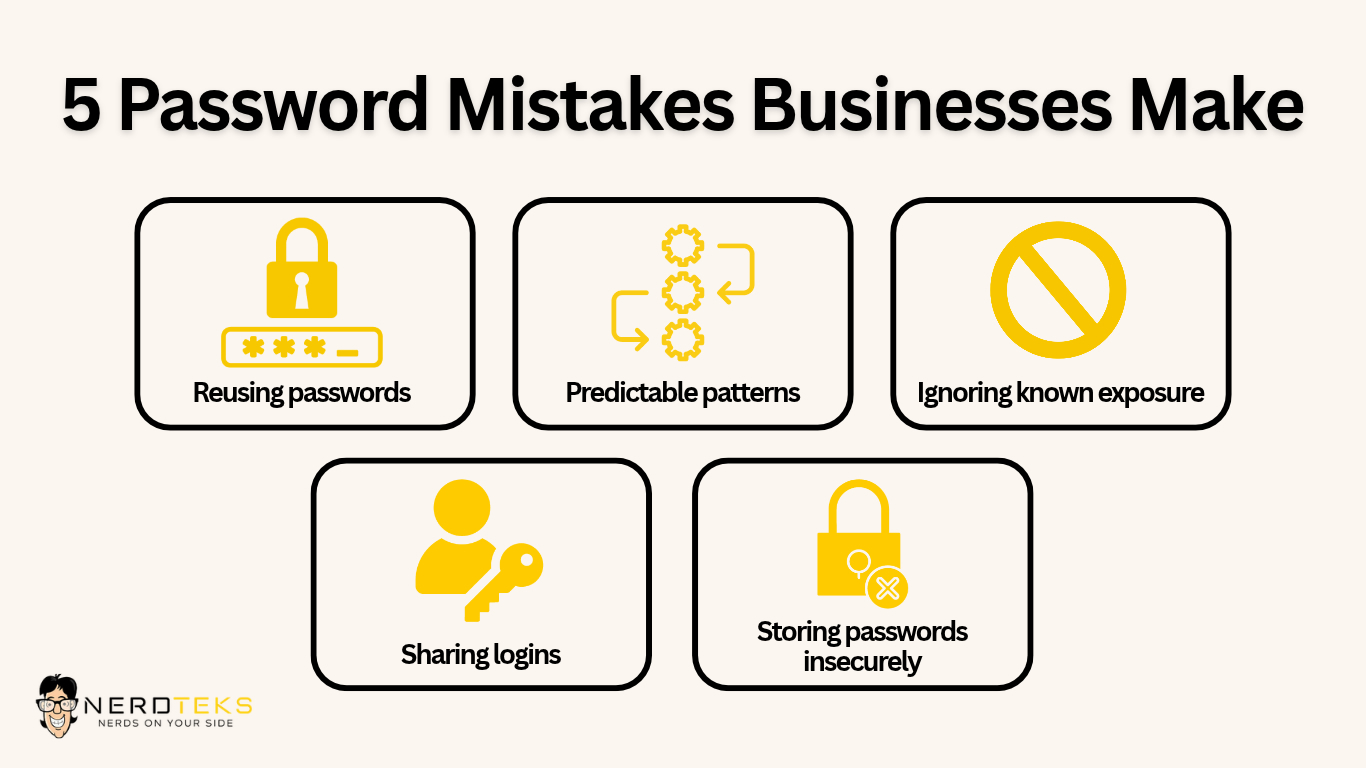
1. Reusing the Same Password Across Multiple Accounts
Using the same password for email, business applications, and personal accounts may seem convenient. The problem is that if one service is compromised and the password becomes exposed, attackers may try the same credentials on other accounts.
What helps
Use a unique password for every account.
A company-approved password manager can generate and securely store passwords so employees do not have to remember each one individually. Business and personal credentials should also remain separate, even when the accounts belong to the same person.
2. Using Predictable Password Patterns
Company names, employee names, seasons, years, sports teams, and familiar phrases are common ingredients in passwords. Adding a number or symbol does not necessarily make a predictable password strong.
Examples such as:
CompanyName2026!
Summer2026!
Password123!
may meet basic complexity requirements while still being easier to guess than a randomly generated password.
What helps
Use long, randomly generated passwords or strong passphrases made from unrelated words. Avoid building passwords from information that can be found on your company website, social media profiles, or other public sources.
A password generator can make this easier by removing the temptation to reuse familiar combinations.
3. Assuming a Password Is Safe Because Nothing Has Happened
An account can appear completely normal even if a password has appeared in known breach data. Likewise, a password may look complicated without necessarily being safe to continue using.
What helps
If a password is known to have been exposed, replace it through the official website or application for that service. If the password was reused elsewhere, replace those passwords as well.
For workplace accounts, notify your IT administrator so they can determine whether any additional investigation or security action is appropriate.
It is also important to understand the limits of breach checking. A match does not automatically mean a specific account was compromised, and a password that does not appear in known breach data is not automatically safe.
4. Sharing Logins to Save Time
Shared passwords are common when businesses are trying to make access easier.
Unfortunately, they can make it difficult to determine who accessed an account, who made a change, or who should retain access when an employee leaves. They can also create problems during vacations, staffing changes, and employee departures.
What helps
Give employees individual accounts whenever the application supports them. Use approved delegation, shared mailbox, role-based access, or team-access features instead of sending passwords through email, text messages, or chat.
When shared credentials are unavoidable, store and manage them through an approved password management system rather than a spreadsheet or document.
5. Keeping Passwords in the Wrong Places
Passwords sometimes end up in browser notes, spreadsheets, email messages, desk drawers, or documents shared between employees.
That may seem convenient, but it creates another location that has to be protected and managed.
What helps
Use a business-approved password manager designed to securely store credentials and control access.
Employees should also know where passwords should not be stored or shared. A consistent process is often more effective than simply telling employees to “use stronger passwords.”
A Simple Starting Point for Better Password Habits
If you are not sure where to begin, the Nerd Teks Password Leak Checker and Password Generator provides two useful starting points:
- Check whether a password appears in known breach data
- Generate a stronger replacement password
The tool is not a replacement for good password management, multifactor authentication, or proper account security. Instead, it can help businesses identify a potential problem and take the next step toward fixing it.
For business accounts, always follow your organization’s security policies and use tools approved by your IT administrator. Never send passwords through email, chat, contact forms, or support tickets.
And remember: generating a new password does not automatically change the password on an existing account. The password still needs to be updated through that service’s official website or application.

Make Password Security Easier for Your Team
Better password security should make work easier, not encourage more shortcuts.
Unique passwords, approved password management tools, multifactor authentication, and clearly defined access procedures can help reduce common password problems while giving employees a simpler process to follow.
If your business has been relying on reused passwords, shared logins, or informal ways of storing credentials, that is a good place to start improving.
Explore the Nerd Teks Password Leak Checker and Password Generator, or contact Nerd Teks for help improving password management, account access, and security across your business.
Latest Insights







Latest Posts